
Overview
We've moved to a new customer portal that brings everything about your account together in one place. From the portal you can manage your domain names, view your hosting and email services, pay invoices and contact our support team.
Your existing services, domains and account details have been carried across for you, and you can log in with the same email address and password you used before. You don't need to re-register or set anything up again.
You can access the portal at portal.domainnameshop.co.uk/client. We recommend bookmarking this page.
Step-by-Step Instructions
1 Log In for the First Time
- Go to portal.domainnameshop.co.uk/client.
- Click Login in the top-right corner.
- Enter the email address you use for your account with us.
- Enter your existing password. This is the same password you used to log in to our old portal.
- Click Login.
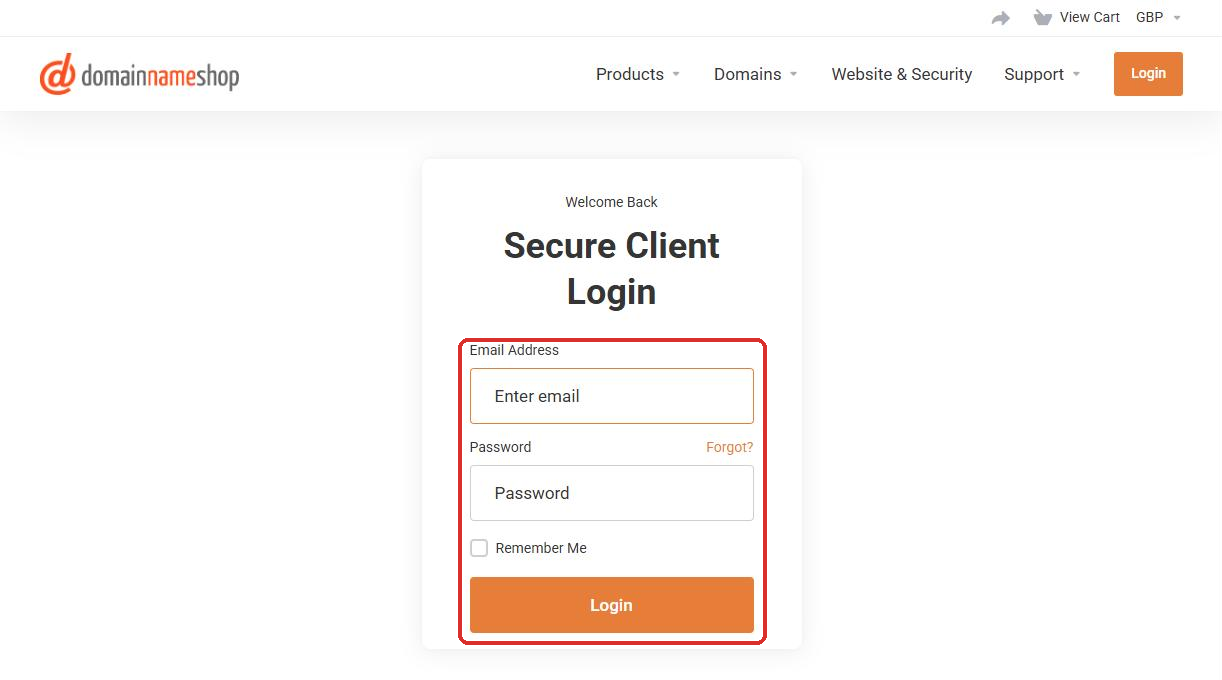
Log in with your email address and the same password you used on the old portal.
Can't remember your password? Click Forgotten Password? below the login form, enter your email address and click Submit. We'll email you a link to choose a new password.
If the reset email doesn't arrive within 10 minutes, check your junk or spam folder, or contact us and we'll help you get logged in.
2 Find Your Way Around the Dashboard
After logging in, you'll see your Dashboard. This gives you a quick summary of your account, including:
- The number of active services and domains on your account.
- Any unpaid invoices.
- Any open support tickets.
- Domains that are due for renewal soon.
Use the menu at the top of the page to move between the main areas of the portal: Services, Domains, Billing and Support.
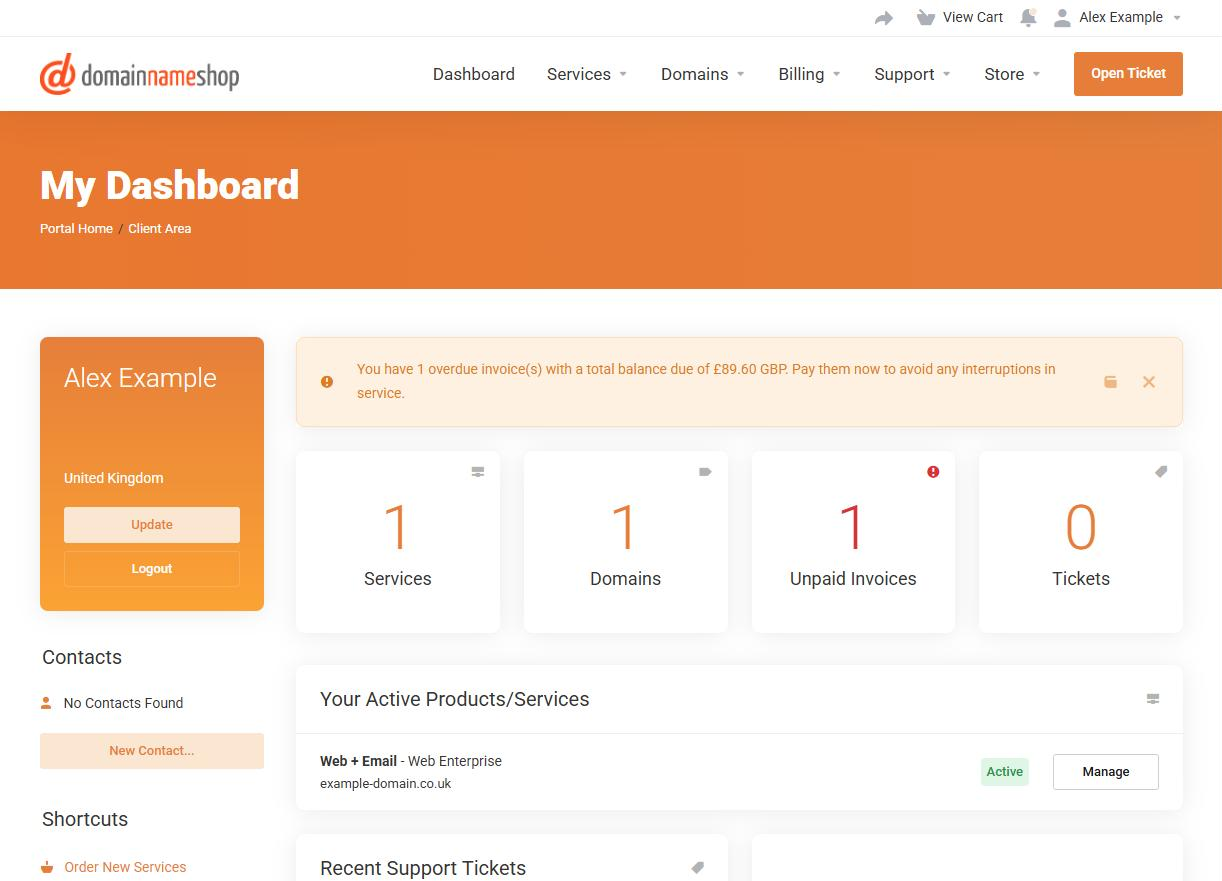
Your dashboard shows a summary of your account, with the main menu along the top.
3 Manage Your Domain Names
- Click Domains in the top menu, then select My Domains.
- You'll see a list of all your domains, along with their status and expiry date.
- Click on a domain name to open its management page.
- From here you can:
- Turn Auto Renew on or off.
- View or change your Nameservers.
- Manage DNS records (if your domain uses our nameservers).
- Update the domain's Contact Information.
- Get your EPP / transfer code if you need to move a domain elsewhere.
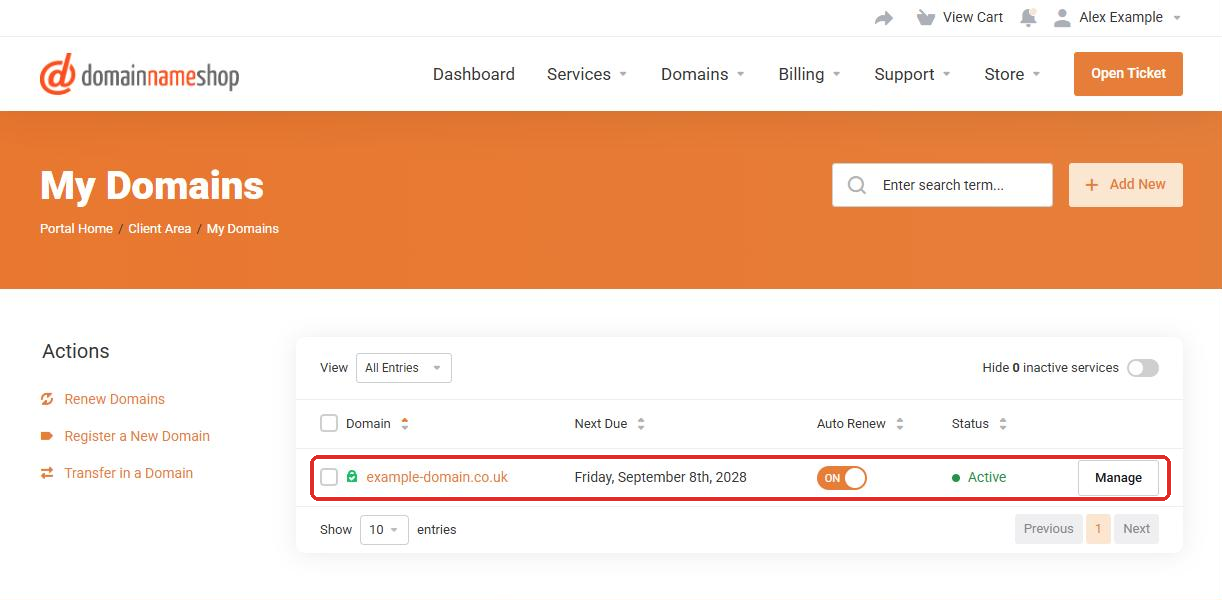
All of your domains are listed under Domains > My Domains.
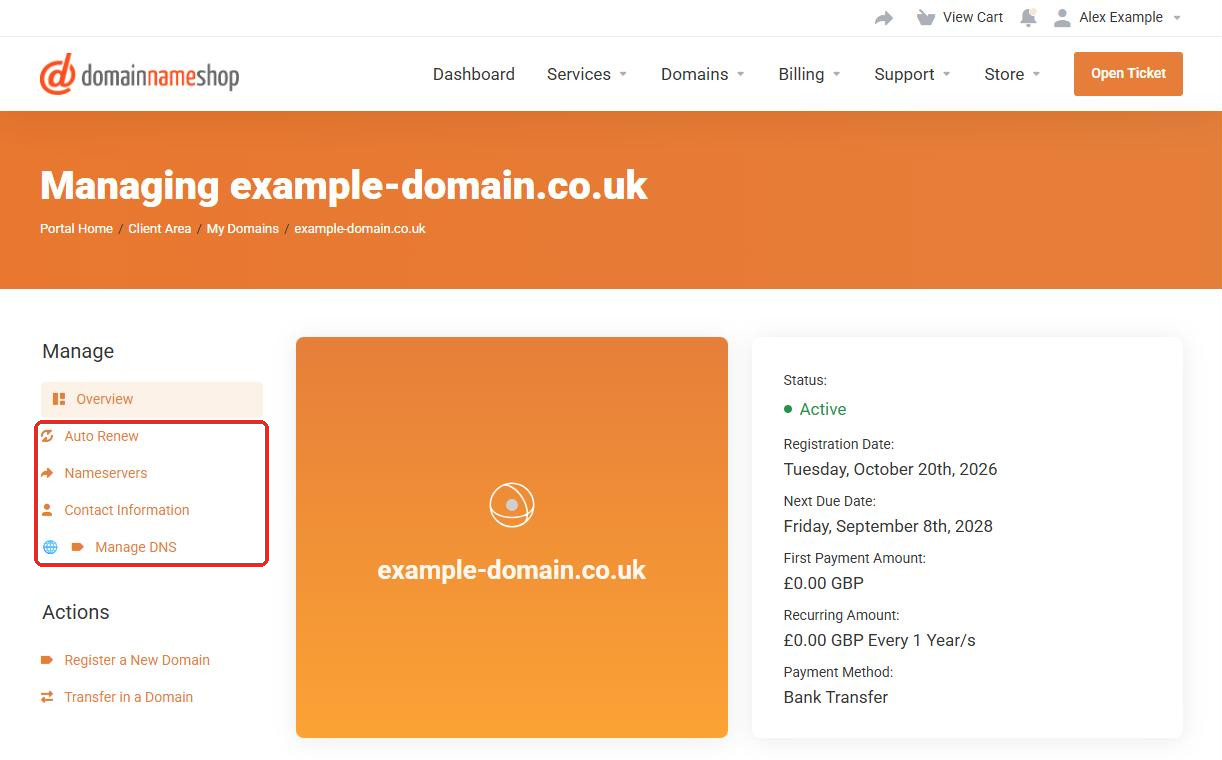
Click a domain to manage its renewal, nameservers and DNS settings.
Take care when changing nameservers or DNS records. Incorrect changes can stop your website and email from working. If you're not sure, please open a support ticket and we'll be happy to help.
4 View Your Hosting and Email Services
- Click Services in the top menu, then select My Services.
- You'll see each of your hosting, email and other services, along with their status, price and next due date.
- Click on a service to view its details and any available management options.
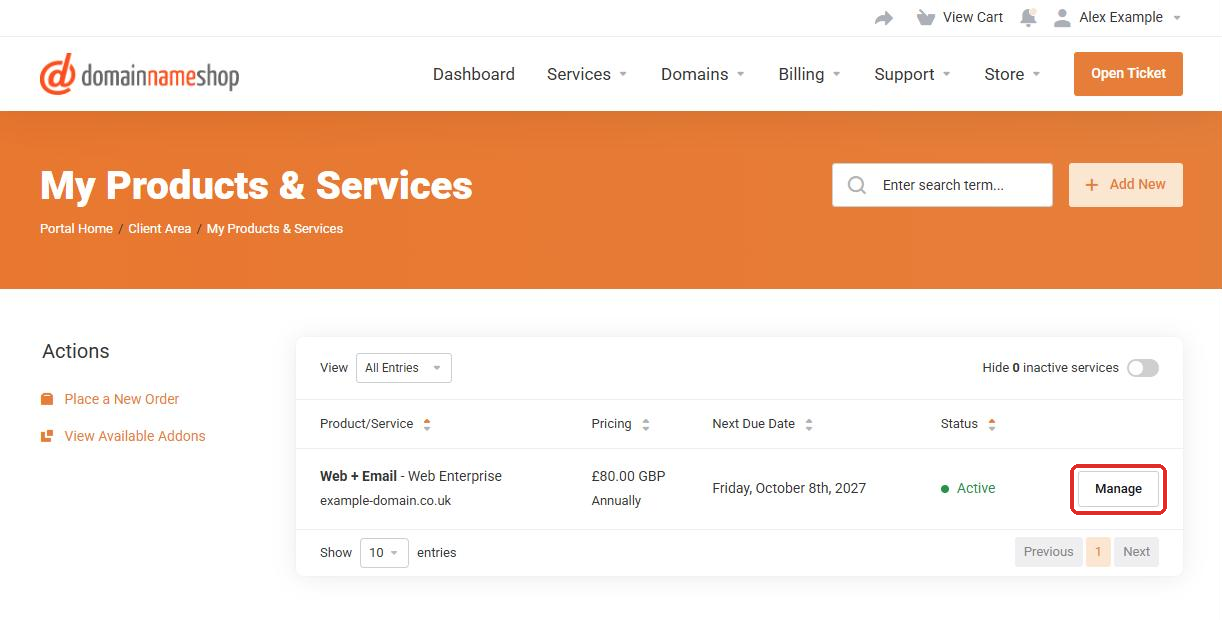
Your hosting and email services are listed under Services > My Services.
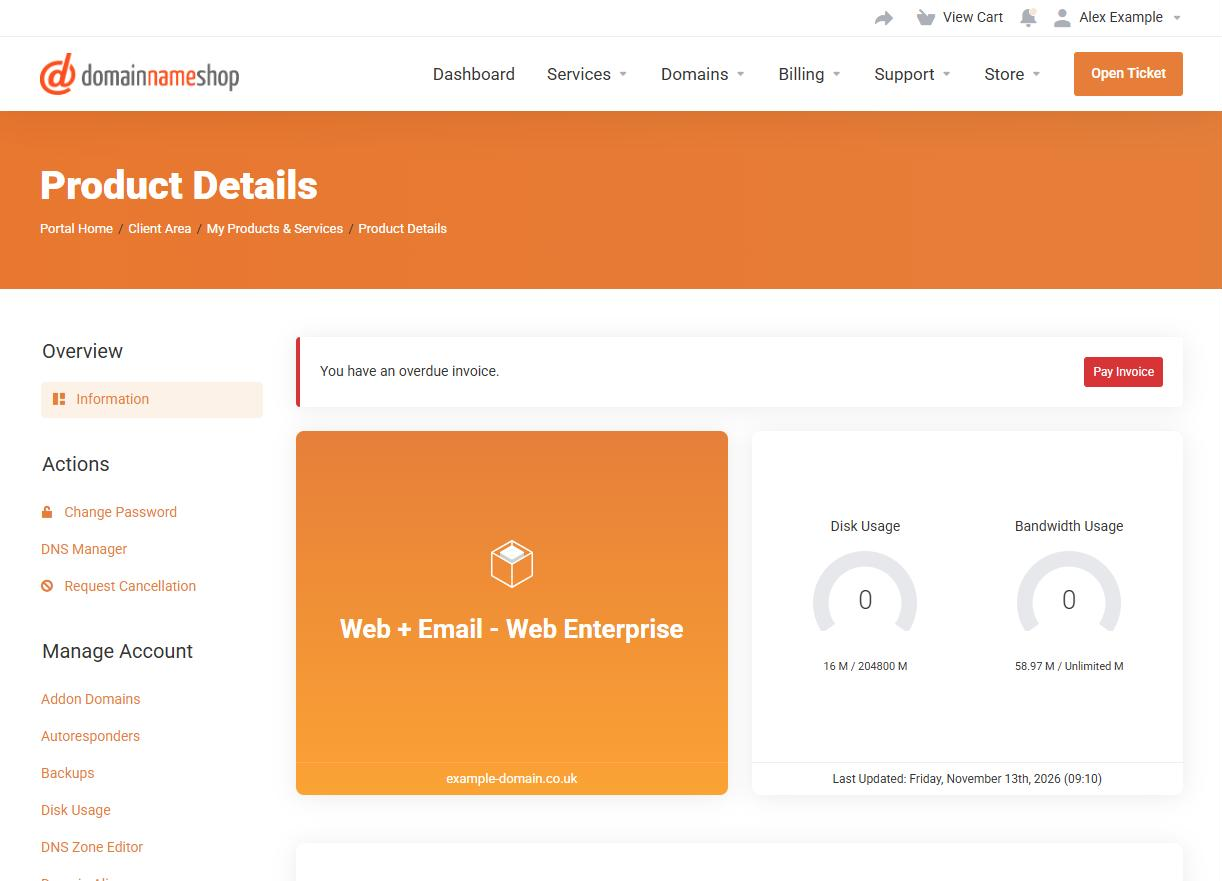
Click a service to see its details and management options.
5 View and Pay Invoices
- Click Billing in the top menu, then select My Invoices.
- Invoices are listed with their date, due date, total and status (Paid or Unpaid).
- Click on an invoice to view it. You can also download a PDF copy for your records.
- To pay an unpaid invoice, open it, choose your payment method and click Pay Now.
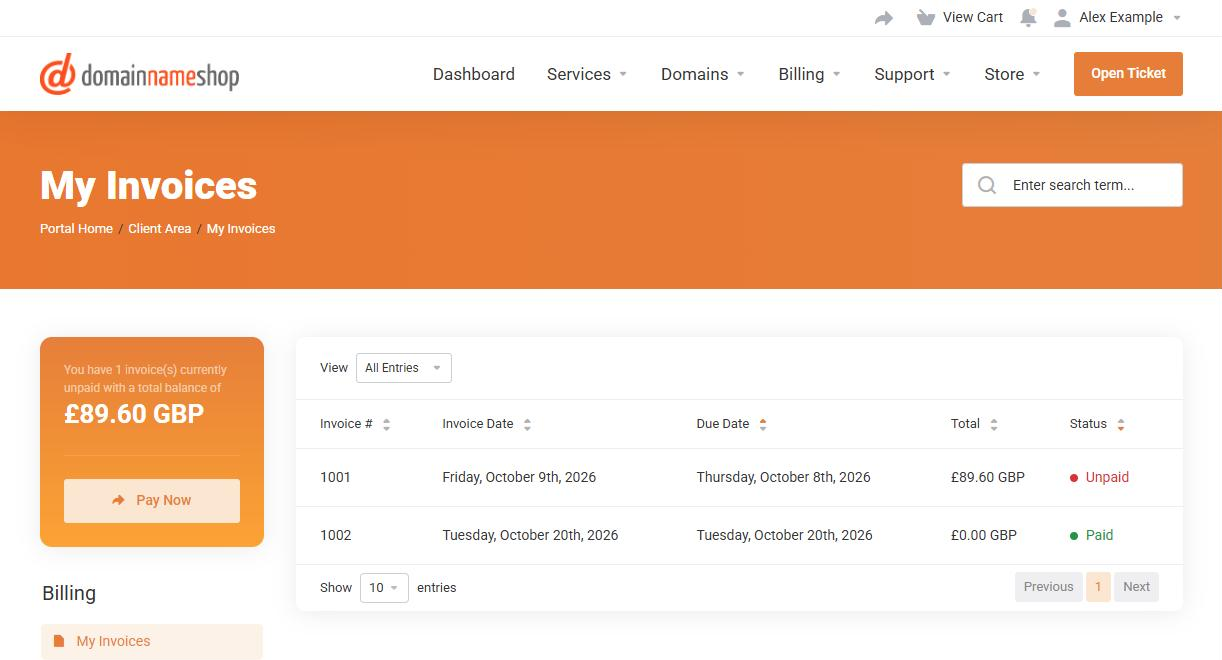
View all of your invoices under Billing > My Invoices.
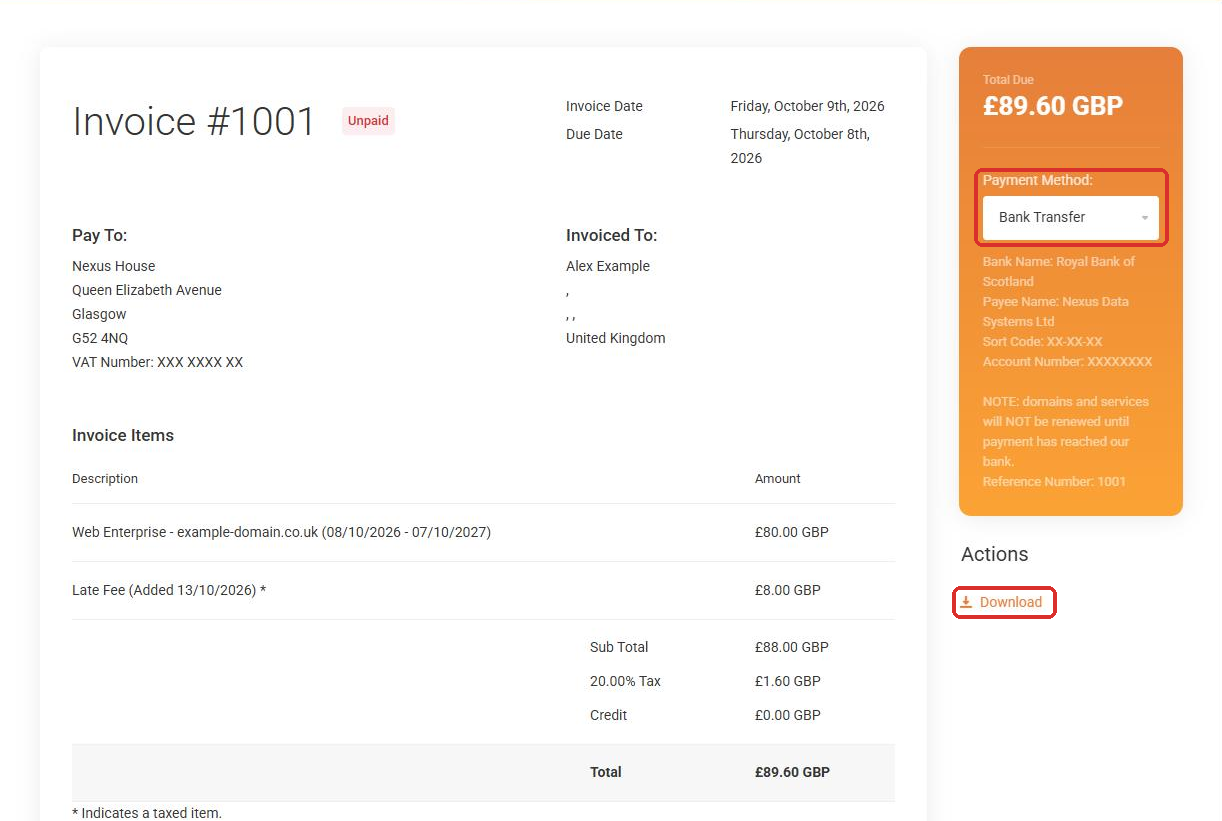
Choose a payment method and click Pay Now, or download a PDF copy.
Tip: You can save a card under Billing > Payment Methods so future renewals are paid automatically and your services aren't interrupted.
6 Check and Update Your Account Details
- Click your name in the top-right corner, then select Your Profile (sometimes shown as Account Details).
- Check that your name, company, address, phone number and email address are correct.
- Make any changes needed, then click Save Changes.
- To change your password, select Change Password from the same menu.
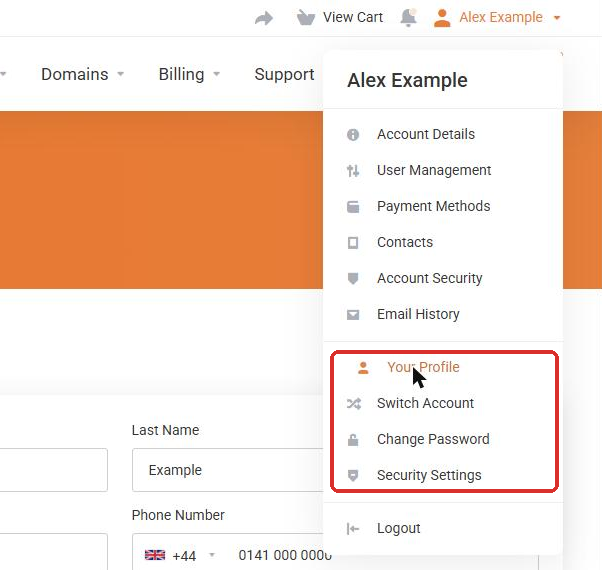
Open the account menu by clicking your name in the top-right corner.
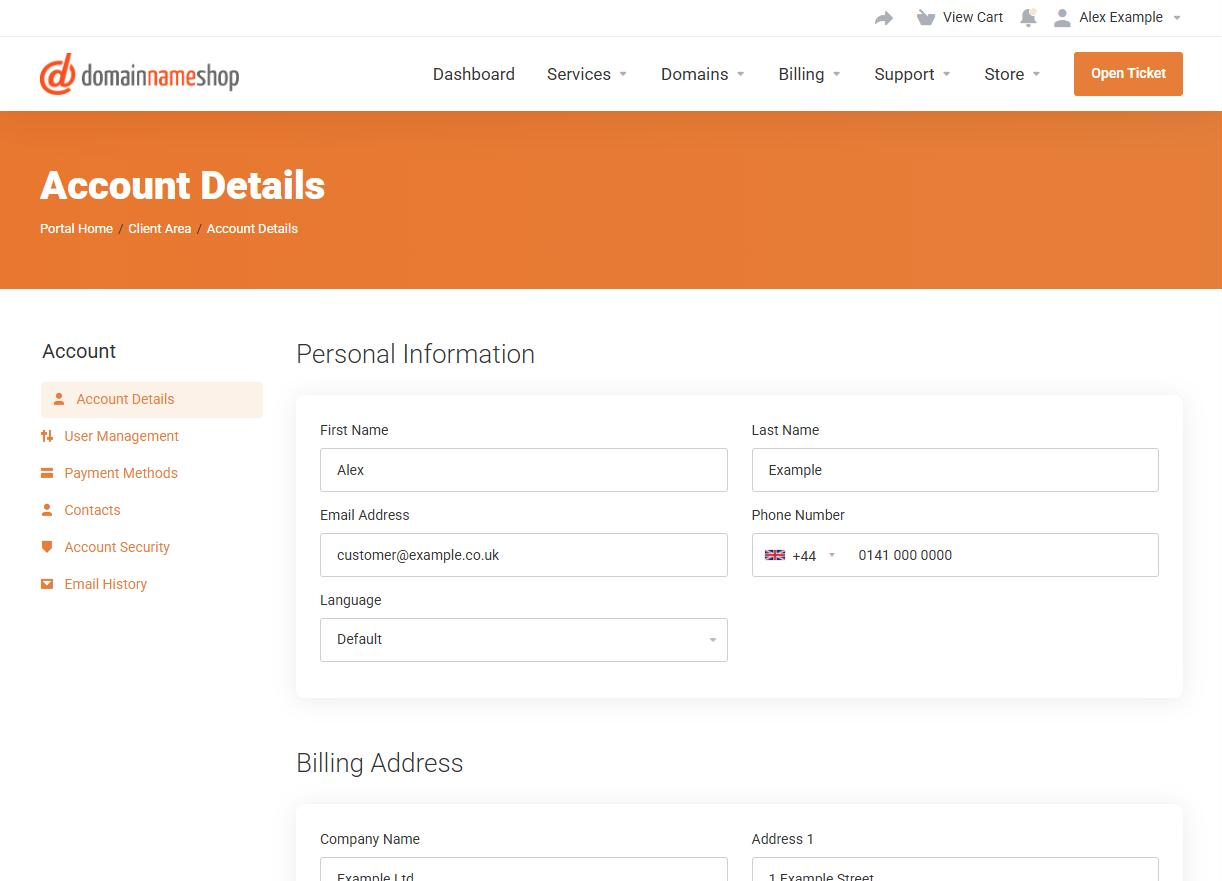
Review your details and click Save Changes.
Why this matters: We use your email address to send invoices, renewal reminders and important service notices. Keeping it up to date helps make sure you never miss a renewal.
7 Get Help and Open a Support Ticket
- Click Support in the top menu.
- Select Knowledgebase to search our help articles, many questions can be answered straight away.
- If you still need help, select Open Ticket.
- Choose the most suitable department.
- Enter a clear subject, select the related service (if applicable) and describe the issue in as much detail as you can.
- Attach any screenshots that might help, then click Submit.
- You can track replies at any time under Support > Tickets. We'll also email you whenever we respond.
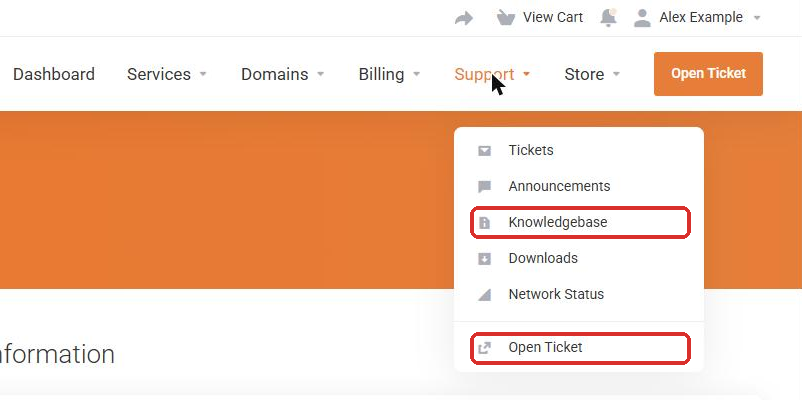
Find our help articles and support tickets under the Support menu.
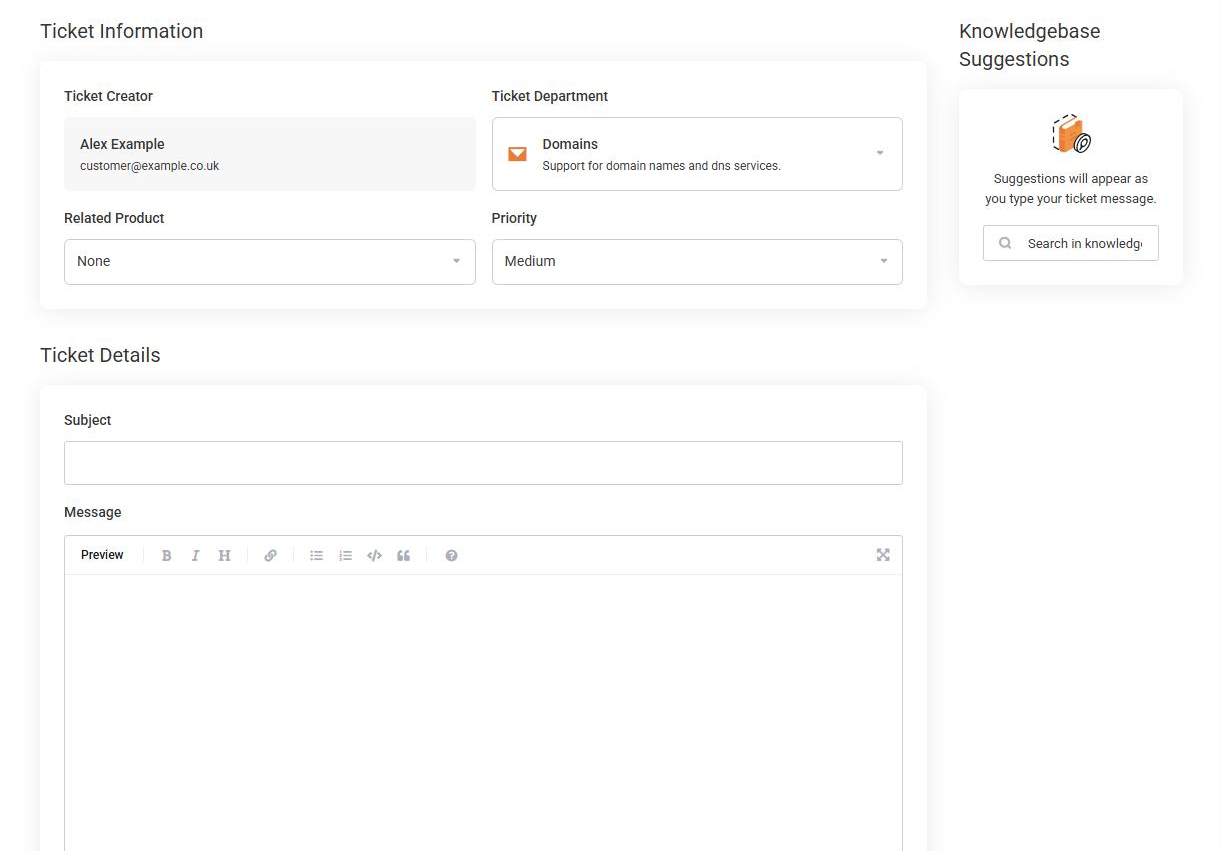
Fill in the ticket form and click Submit.
8 Secure Your Account (Recommended)
For extra protection, you can turn on two-factor authentication. This means you'll need a code from an app on your phone, as well as your password, to log in.
- Click your name in the top-right corner, then select Security Settings.
- Under Two-Factor Authentication, click Click here to Enable.
- Scan the QR code with an authenticator app, such as Google Authenticator or Microsoft Authenticator.
- Enter the 6-digit code shown in the app to confirm.
- Make a note of the backup code and keep it somewhere safe.
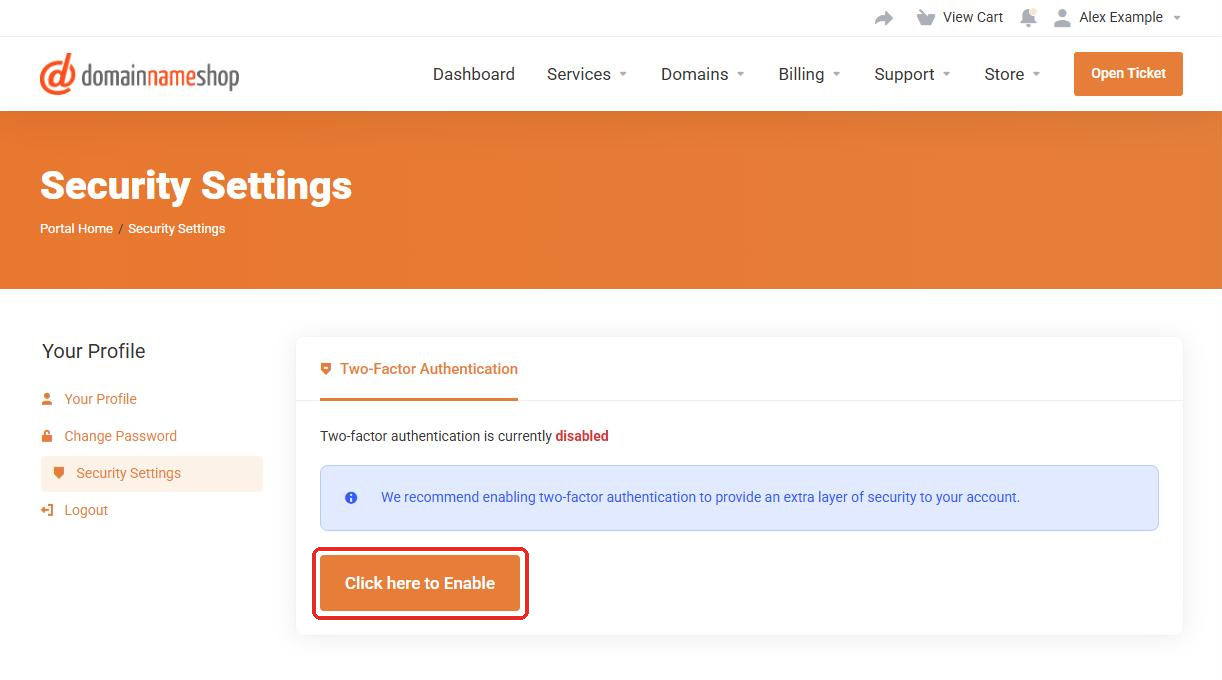
Turn on two-factor authentication from Security Settings.
Important: Keep your backup code safe.
If you lose access to your phone, the backup code is the only way to log in without contacting our support team.
Quick Reference: Where to Find Things
Use this table to quickly find what you need in the portal:
| I want to... | Go to |
|---|---|
| See my domain names and expiry dates | Domains > My Domains |
| Change nameservers or DNS records | Domains > My Domains > (select domain) |
| Renew a domain | Domains > Renew Domains |
| See my hosting and email services | Services > My Services |
| View or pay an invoice | Billing > My Invoices |
| Add or update a payment card | Billing > Payment Methods |
| Update my contact details | Your Name > Your Profile |
| Change my password | Your Name > Change Password |
| Search help articles | Support > Knowledgebase |
| Contact support | Support > Open Ticket |
Menu names may look slightly different on a mobile phone. Tap the menu icon (☰) in the top corner to see all options.
Having Trouble?
If you can't log in or something doesn't look right:
- Make sure you're using the email address registered on your account, not a different email address.
- Use the same password you used on the old portal. If it isn't accepted, use the Forgotten Password? link to reset it, and check your junk or spam folder for the reset email.
- If a service or domain appears to be missing, please let us know and we'll check it for you.
- Try clearing your browser cache, or log in using a different browser.
Need a Hand?
If you have any questions about the new portal, please open a support ticket through your customer portal.
If you can't log in at all, just reply to any email from us and our support team will be happy to help you get access.


