
Overview
If your email service has recently been moved to our new hosting portal, you may need to update your Mozilla Thunderbird settings to continue receiving emails.
Don't worry, this is a simple change and you won't need to remove or recreate your email account.
Step-by-Step Instructions
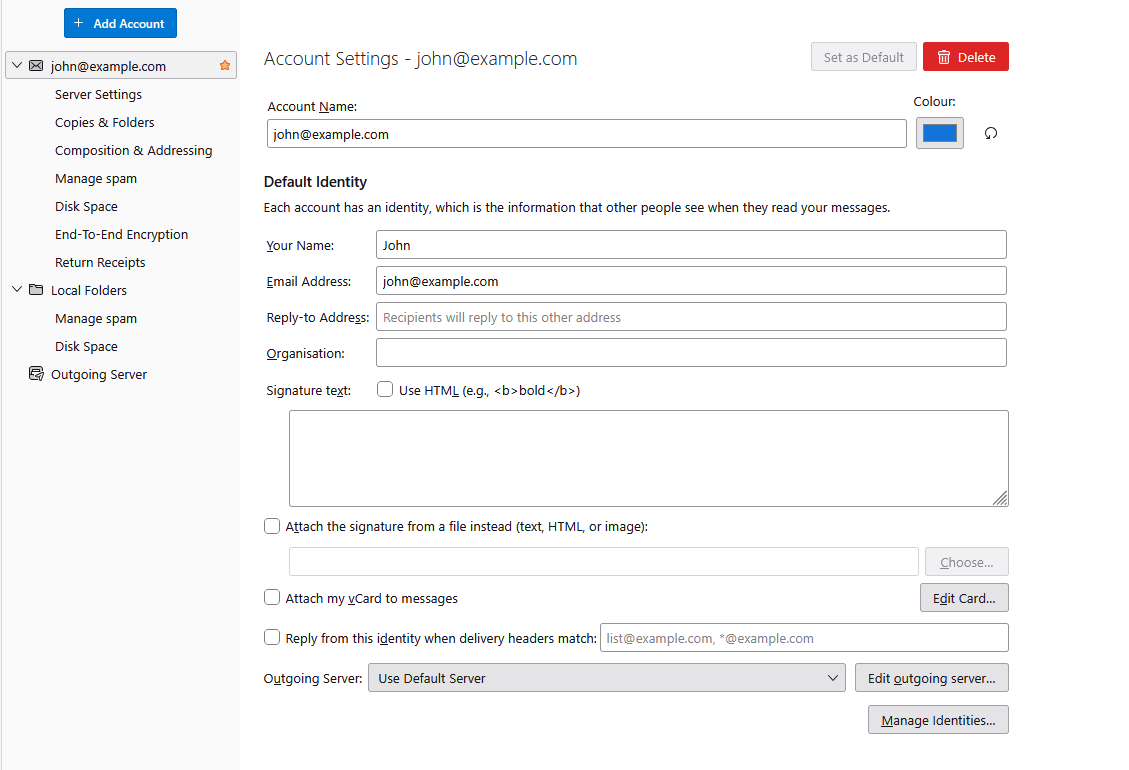
1 Open Thunderbird Account Settings
- Open Mozilla Thunderbird.
- Click the menu button (☰) in the top-right corner.
- Select Account Settings.
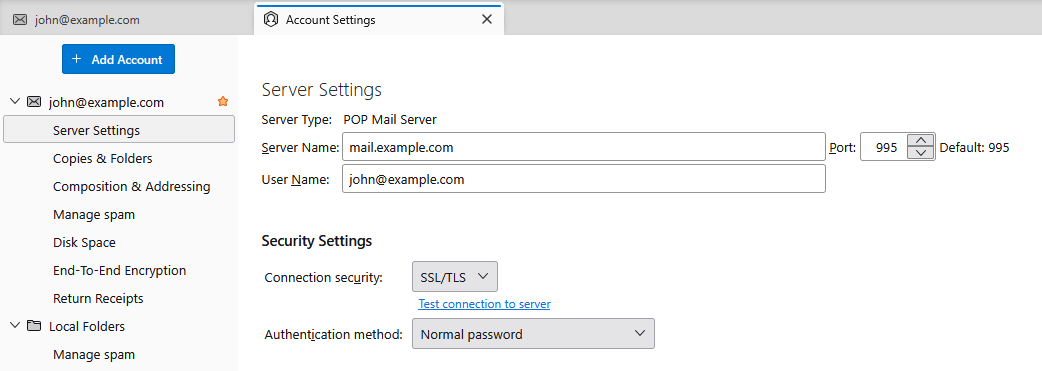
2 Update Your Incoming Mail Settings
- In the left-hand menu, select Server Settings beneath your email account.
- Find the Server Name field.
- Change it to mail.yourdomain.com, replacing yourdomain.com with your own domain name.
- Ensure the Username field contains your full email address (e.g. john@example.co.uk).
- Change the Port to 995.
- Ensure Connection Security is set to SSL/TLS.
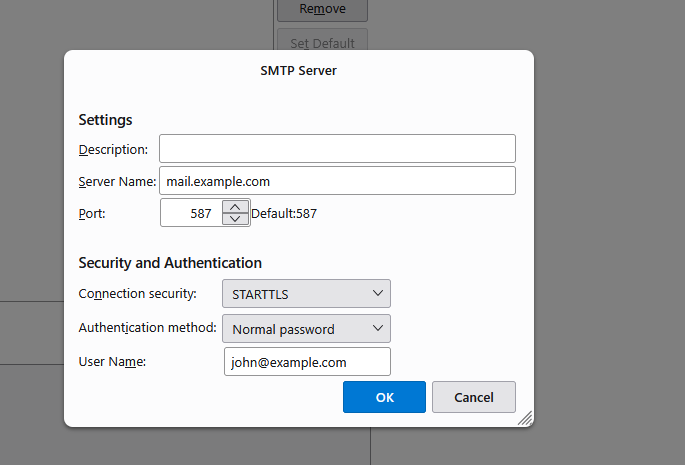
3 Update Your Outgoing Mail Settings
- In Account Settings, scroll down the left-hand menu and select Outgoing Server.
- Select the outgoing server used by your email account and click Edit.
- Change the Server Name to mail.yourdomain.com, using your own domain name.
- Set the Port to 587.
- Set Connection Security to STARTTLS.
- Again, ensure the Username field contains your full email address (e.g. john@example.co.uk).
- Click OK to save your changes.
4 Check Your Emails
- Return to your Thunderbird inbox.
- Click Get Messages to check for new emails.
- If prompted, enter your email account password.
- Send yourself a test email to confirm everything is working.
POP email accounts may store downloaded messages on your computer. Removing the account could put previously downloaded emails at risk.
You only need to update the existing server settings.
Email Settings Reference
Use the following settings for your email account:
| Setting | Value |
|---|---|
| Incoming Server (POP3) | mail.yourdomain.com |
| Incoming Port | 995 |
| Incoming Security | SSL/TLS |
| Outgoing Server (SMTP) | mail.yourdomain.com |
| Outgoing Port | 587 |
| Outgoing Security | STARTTLS |
| Username | Your full email address |
Remember to replace yourdomain.com with your actual domain name.
Still Having Problems?
If your emails still aren't arriving:
- Double-check that your server names and port numbers match the table above.
- Make sure you're connected to the internet.
- Close Thunderbird, reopen it and try checking for messages again.
Need a Hand?
If you're still having trouble receiving emails after updating your settings, please open a support ticket through your customer portal.
Our support team will be happy to help you get your emails working again.


